
Tools & Controls
From parental controls to usage reports, we’ve got tools to help you manage screen time.
Easily manage your family's screen time across all your devices.

WiFi

Mobile

TV

Games & Apps
Managing time on WiFi
Learn how you can enable screen time controls with our home internet products to set time limits, pause WiFi access, and schedule downtime.

Rogers Xfinity App
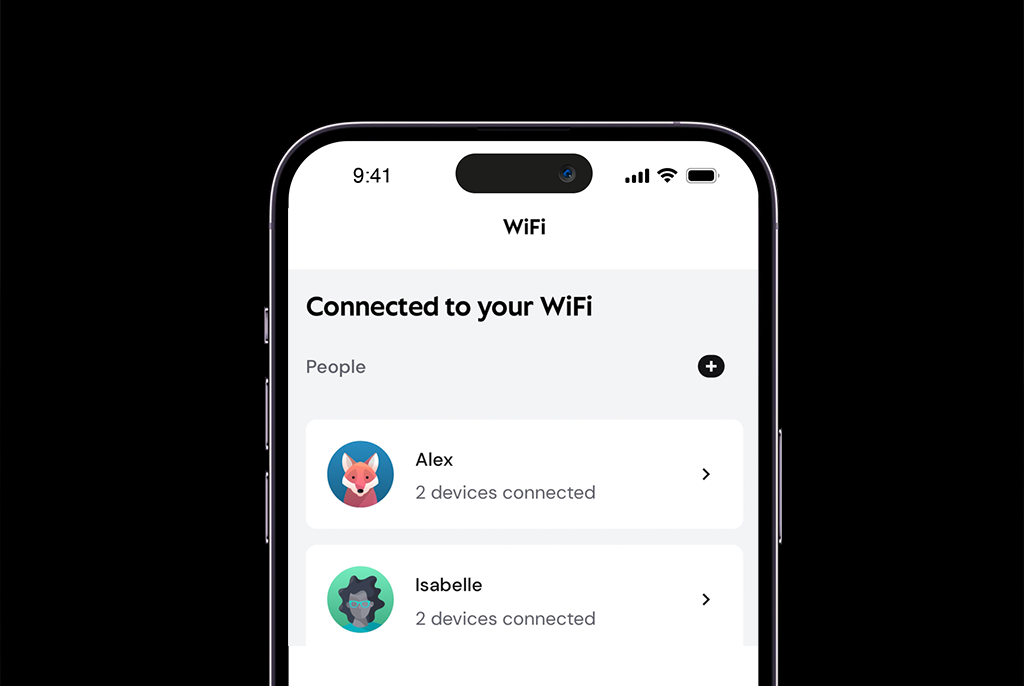
Set Up User Profiles
Begin by setting up personalized profiles for different family members and their devices to start using tools like parental controls, time limits and downtime schedules.
show less
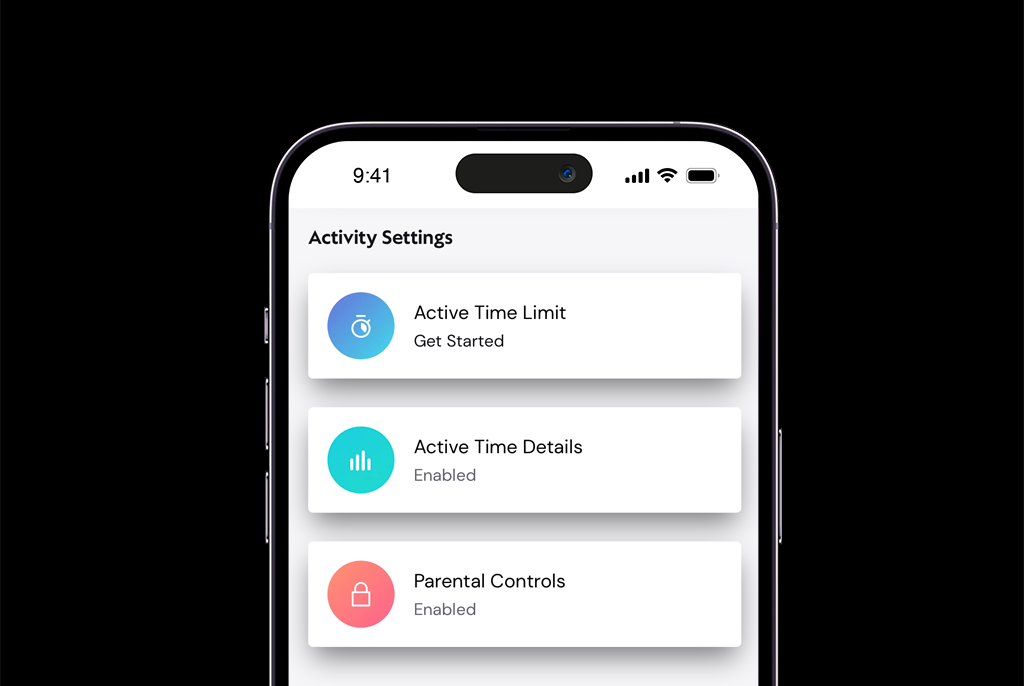
Enable Parental Controls
Enabling Parental Controls helps ensure access to age-appropriate content on all devices assigned to your selected user profile.
See our step-by-step guide to turning parental controls on and off.
show less
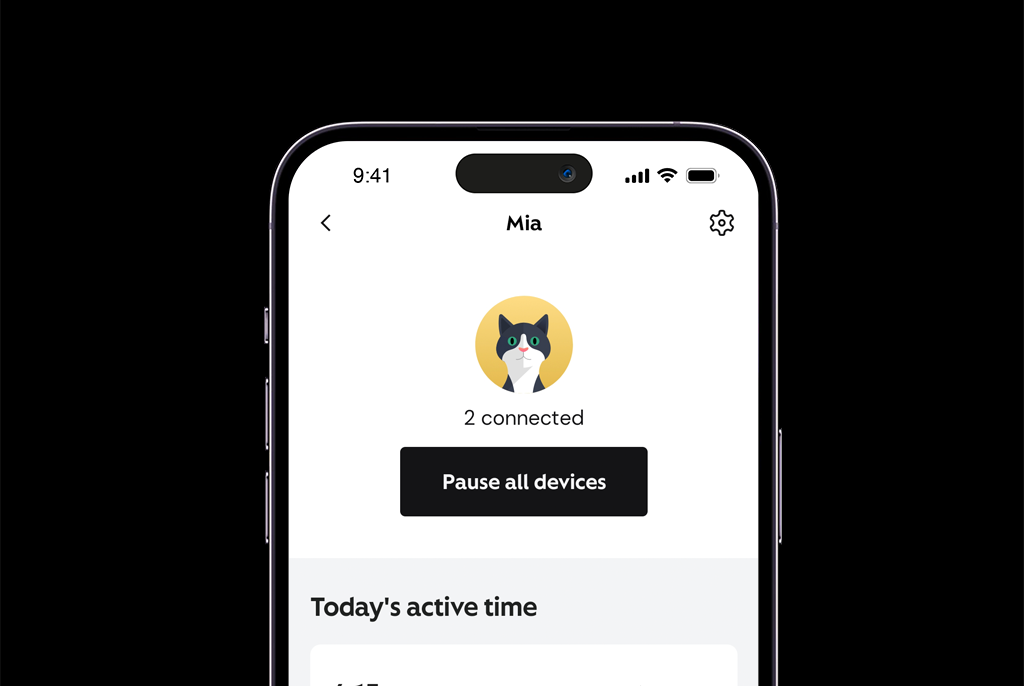
Use Active Time Details to Track Screen Time
Lost track of hours spent online? Want to balance time gaming with time playing outdoors? Active Time Details lets you easily see how much time you or your children are spending on select popular apps and websites while connected to your home WiFi network.
show less
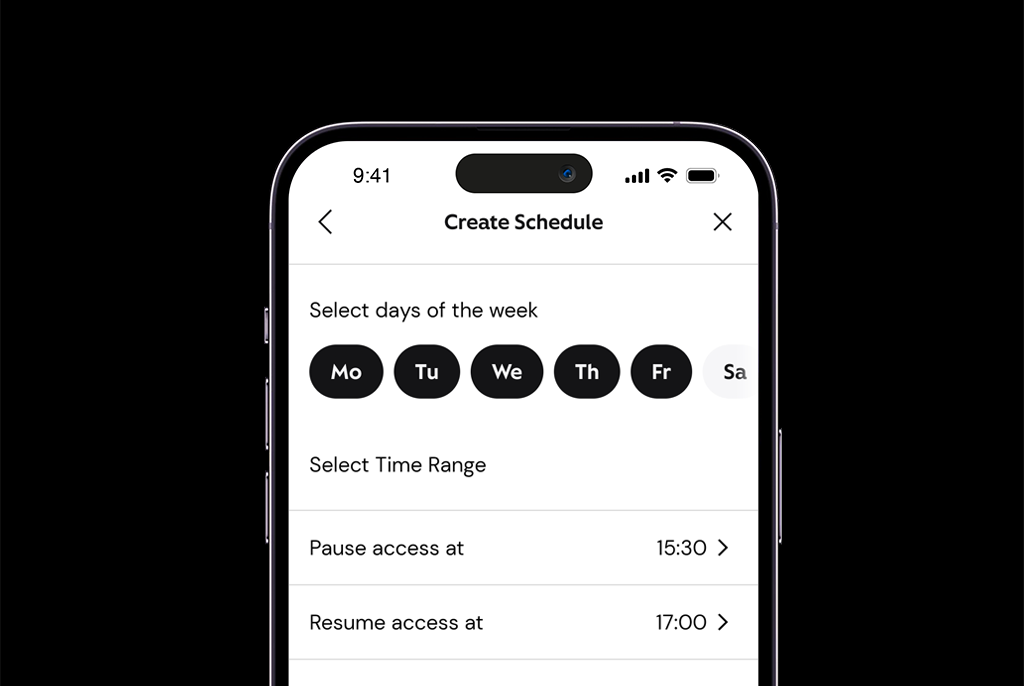
Set Up Time Limits and Downtime
Help your tweens and teens disconnect at important times; whether that’s during mealtimes, homework, or sleeping at night. Setting up time limits and scheduling downtime allows you to pause internet access for selected users at specific times automatically.
Learn how to set time limits to manage your family’s daily internet usage.
Enable Downtime Schedules to pause internet access at specific times.
show less
Nokia WiFi App
Use the Nokia WiFi app to manage parental controls on 5G Home Internet.
Set Up User Profiles
Create personalized profiles for your family’s devices to start using tools like Parental Controls, downtime schedules and website blocking.
show less
Set Up a Downtime Schedule
Encourage balanced screen time for your tweens and teens by setting up a schedule that automatically blocks internet access during specific times, for selected profiles.
show less
Block Websites
Keep your child’s online experience age-appropriate by preventing access to specific websites for different profiles.
show less
NaviGate Companion App
Easily set up parental controls on your Vantiva Cobra 5G Xtream Gateway.
Set Up Time-outs and Block Websites
Encourage balanced screen time for your child by setting up Time-outs that temporarily pause internet access on the devices you choose. You can also set up security levels and block specific websites to support a safer, age-appropriate online experience.
See our full guide to set up parental controls in the Navigate Companion app.
show less
Managing mobile usage
Learn how you can keep track of data usage and set up parental controls on phones to better manage your tweens and teens’ screentime.

Manage Data Usage on MyRogers
To help your family balance screentime, you can monitor and manage your family’s mobile data usage by signing in to MyRogers.
show less
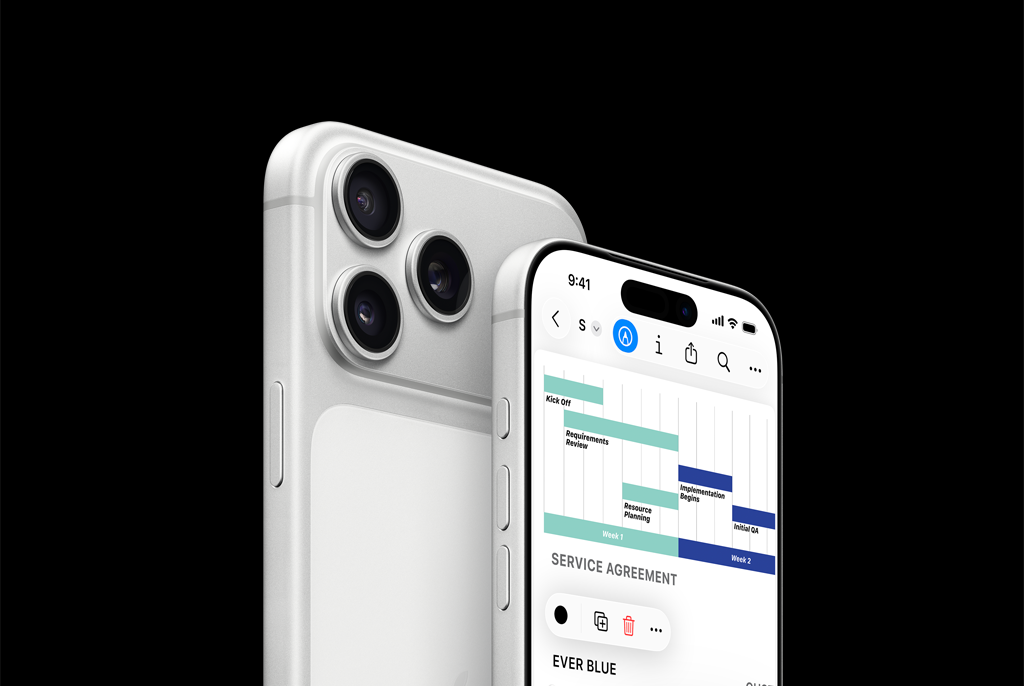
Set Parental Controls on Apple Devices
Use Apple’s Family Sharing to enable parental controls right on your device. This makes it easy for you to limit screen time, add purchase and content restrictions, and track your teen’s location.
Visit Apple.com for a step-by-step guide on Apple’s Family Sharing.
show less
Set Parental Controls with Google Family Link
Enable Google’s FamilyLink on Android devices like Samsung, Pixel and Motorola to create parental controls on your device. This makes it easy for you to limit screentime, add purchase and content restrictions, and track your child’s location.
Visit Google.com for a step by step guide on Google’s Family Link.
show less
Set Parental Controls on Motorola Devices
Use Motorola’s app, Family Space, to manage your child’s device and track their location, facilitating productive, safe and healthy digital interactions with their devices.
Visit Motorola.com for a step-by-step guide on Motorola’s Family Space.

show less
Managing TV time
Learn how to use Rogers Xfinity TV parental controls to manage what and when your family watches.

Use TV Parental Controls
With Rogers Xfinity TV you can access content ratings and age appropriateness scores through Common Sense ratings and our Parental Guide. You’ll also be able to limit access to content through our Safe Browse, set up purchase restrictions, lock specific channels and content, as well as set up limited access at certain times.
show less
Setting parental controls for apps and games
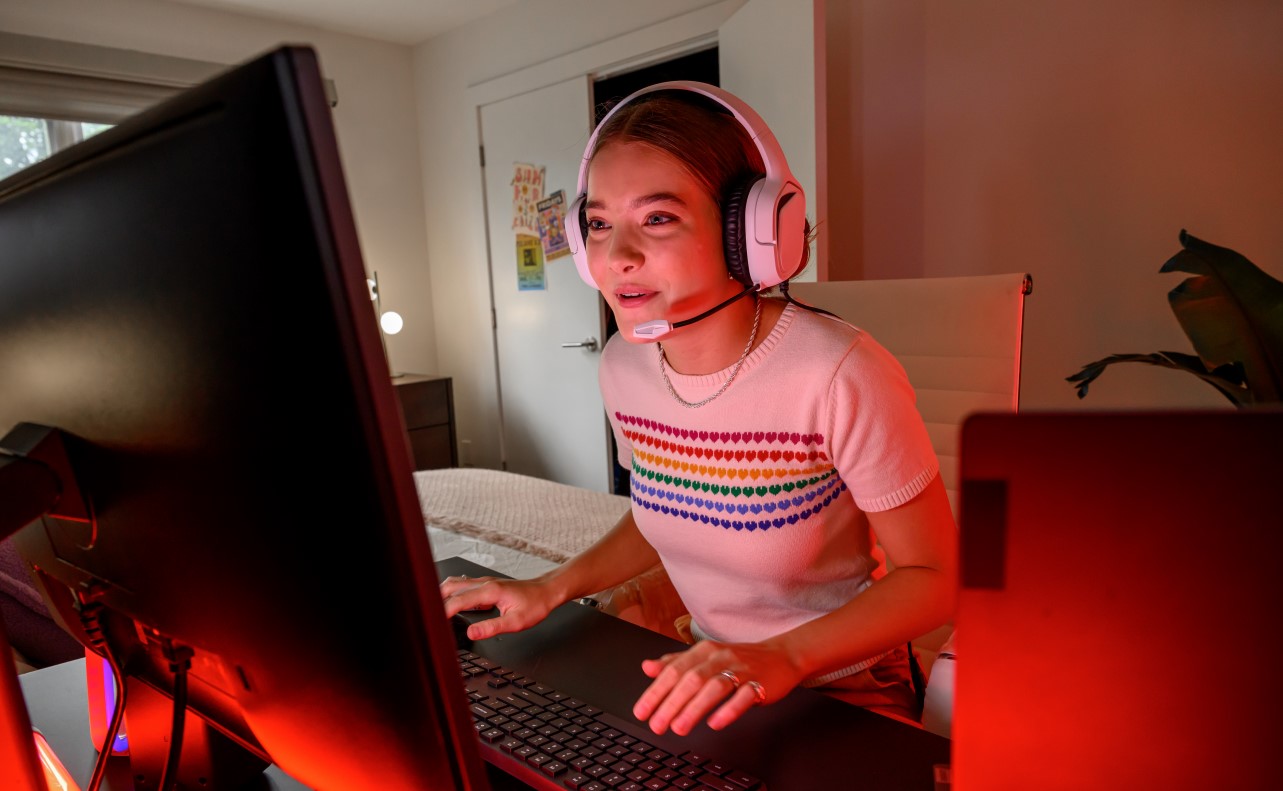
See which parental controls are available on common social media and gaming apps to help keep your child’s experience positive and balanced.
TikTok
TikTok is a social media app for sharing, creating, and watching short video content.
Set Up Family Pairing
Family Pairing is a parental control feature on TikTok where you link your account to your child’s to enable controls, such as daily screen time limits, Restricted Mode, and direct message settings.
Visit TikTok’s Family Pairing Resource for a step-by-step guide.
show less
Manage Privacy Settings
Use TikTok’s privacy settings to make your child’s accounts private so other users can’t see their posts, turning off comments on videos, and control who can direct message them.
Visit TikTok’s resource on account privacy settings to learn more.
show less
Snapchat
Snapchat is a multimedia messaging app known for its disappearing photos. If your child entered their correct birth date when signing up, adult content should be filtered out.
Set Up Privacy Settings
Privacy settings on Snapchat can allow you to control who contacts you and can view your posts, who can view your location, and who can find you through Snapchat’s Discover feature.
Visit Snapchat’s resource on privacy settings to learn how to set them up.
show less
Instagram is a platform where users can share photos and videos and interact with others’ content and accounts. Users must be 13 or older to create an account.
Enable Parental Supervision for Your Child’s Account
Supervision is a set of tools that parents can use to help support their child under 18. Parents can set time limits, enable sleep mode, see how much time their child spends on the app and see which accounts they’re following, and view their privacy settings.
Visit Instagram.com to find more information on Parental Supervision and how to set it up.
show less
Make Your Child’s Account Private
Private accounts allow users to control who has access to their account and content, while public accounts can be viewed and followed by anyone.
See Instagram’s resource to make your child’s account private.
show less
Turn Off Commenting
Comments can be turned off for individual posts. When you do so, any comments currently under the post will be hidden.
Visit Instagram’s step-by-step guide to learn how to turn off comments.
show less
YouTube
YouTube is a video-sharing platform where people watch, upload, and comment on videos.
Turn Restricted Mode On and Off
Restricted mode is a control you can use through the Family Link app, which limits videos with potentially mature content.
Visit Youtube’s Help Center to learn how to turn Restricted Mode on or off.
show less
YouTube Kids
With YouTube Kids, parents can decide the content level setting and whether their child can use the search function in the app. There are specific content level settings for kids ages 8-12.
Visit YouTube Kids to learn more about the benefits and controls available.
show less
Fortnite
Fortnite is a multiplayer video game developed by Epic Games that combines creative building with third-person shooting action.
Enable Parental Controls
Sign in to your child’s Epic Games accounts using the Epic Account Portal to modify controls like voice chat permission, filtering mature language, requiring a pin to add friends and much more.
show less
Discord
Discord is a voice, video, and text app where users chat, play and exchange content in online communities. Users must be at least 13 years of age to use the app.
Block Unwanted Communications
On Discord, you can block direct messages and users to ensure your child is safe.
Visit Discord’s support page to learn how to enable these controls.
show less
Roblox
Roblox is an online platform where players can create and share their own games in immersive virtual worlds.
Set Up Parental Controls
Roblox Parental Controls settings allow you to make changes to your child’s account, including restricting content and preventing chatting or engaging with unknown contacts.
show less